
Creating a Fiscal Year
To be able to create, edit, or delete fiscal years, a user must have the Contract Management Admin permission.
1. Click the Settings icon in the lower left of the screen.
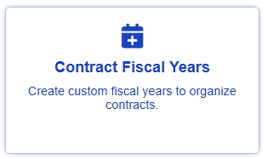
2. Click on the Contract Fiscal Years card.
3. Click the + Create Fiscal Year blue button in the top right corner of the screen.

4. Give your new fiscal year a name of 50 characters or less, a start date, and an end date.

5. Click Save.
Editing a Fiscal Year's Details
To edit an existing fiscal year, return to the Contract Fiscal Years card in the administration settings area and click the pencil icon at the right of the desired row.
The name and dates of the fiscal year can be edited and saved.
Assigning a Fiscal Year to a Contract
During the contract creation process, locate the fiscal year dropdown in the top-level contract data. Click the dropdown and choose the desired fiscal year in the dropdown. Upon clicking the blue + Create button, this contract will be saved.
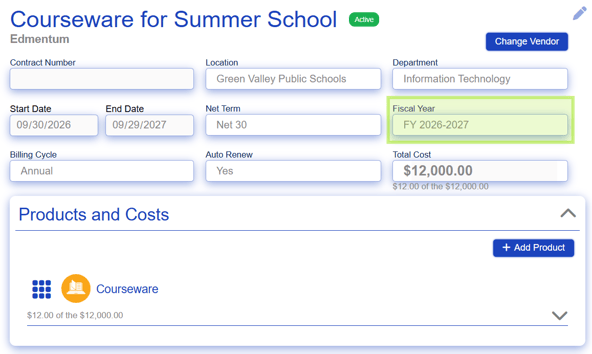
Any contracts NOT given a specific fiscal year will be left Unassigned and will be available for viewing in the contracts list, reports, and dashboards by selecting [Unassigned] in the dropdown.
This fiscal year can be changed at any point by editing the contract's data.
Viewing Contracts by Fiscal Year
To view all contracts within a given fiscal year, use the dropdown at the top right of the Contracts screen to adjust to the desired fiscal year.
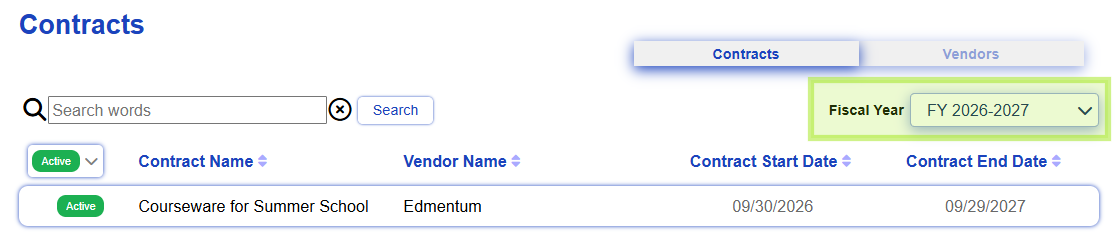
To view all contracts that are not associated with a fiscal year, choose [Unassigned] in the dropdown.
Viewing Reports by Fiscal Year
Once you select the desired report, utilize the fiscal year dropdown in the top right corner of the screen to view that report for the specified fiscal year.

Viewing the Dashboard by Fiscal Year
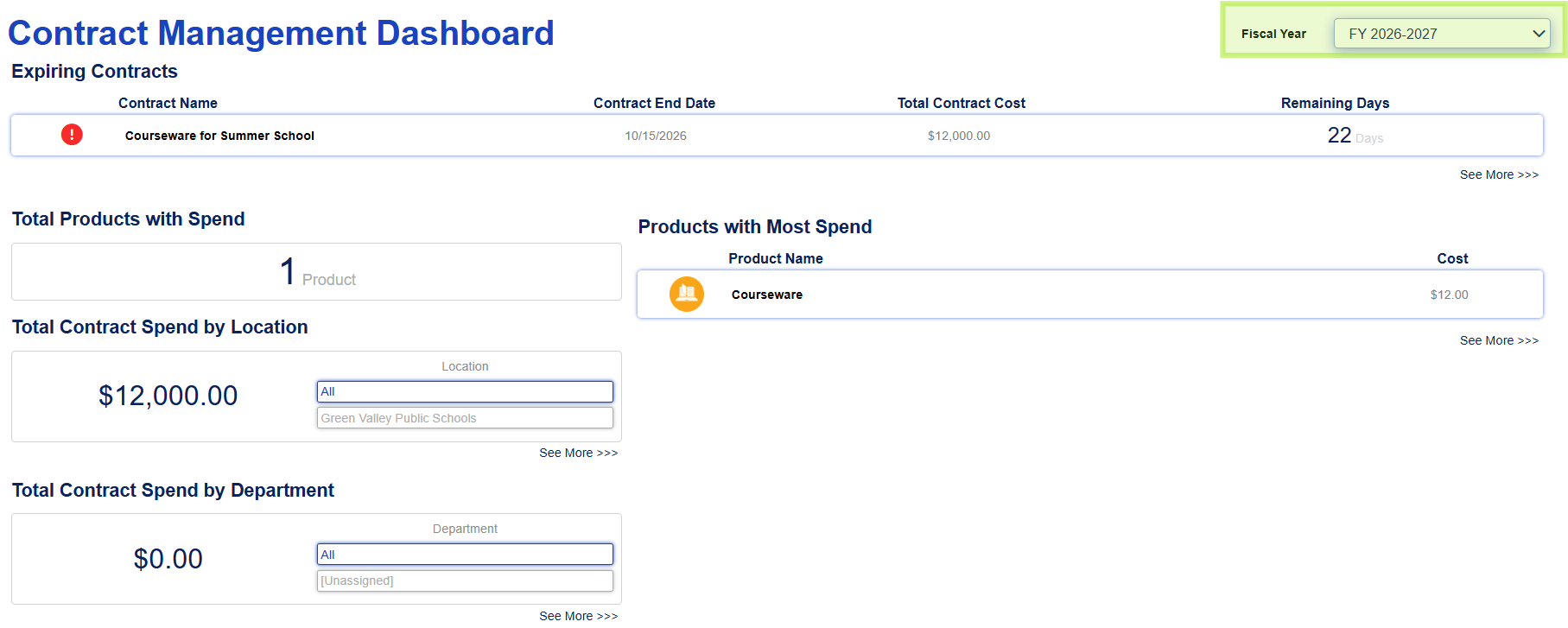
To view Dashboard data summaries for a specific fiscal year, utilize the fiscal year dropdown in the top right corner of the screen.
Deleting a Fiscal Year
To delete a fiscal year, return to the Contract Fiscal Years card in the administration settings area and click the trashcan icon in the right of the desired row.
A fiscal year can only be deleted if zero contracts are associated with it. If the trash can icon for deletion is not visible on the row and Usage shows 1 or greater, the fiscal year cannot be deleted unless all contracts associated with it have the fiscal year removed from the dropdown on the contract.