Users must be a Directory Admin or have Manage Products as a Directory Editor in order to use this feature.
Accessing Bulk Assign Approval Statuses
Navigate to the Directory page where you'd like to bulk assign statuses.
Click on the Bulk Assign Status tab.
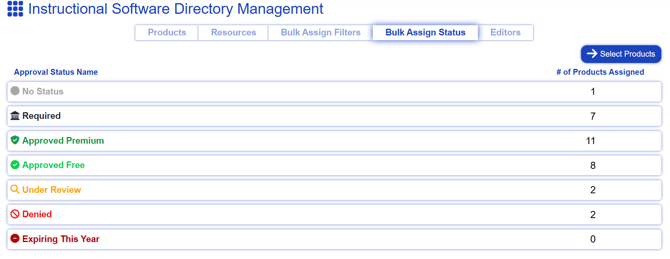
Manage Approval Statuses in Bulk
When you enter the Bulk Assign Approval Status tab, you will see an overview of all approval statuses in your organization, as well as the number of products that given status is associated to in the system.
To begin assignment, go to the button at the top right-hand corner titled Select Products.
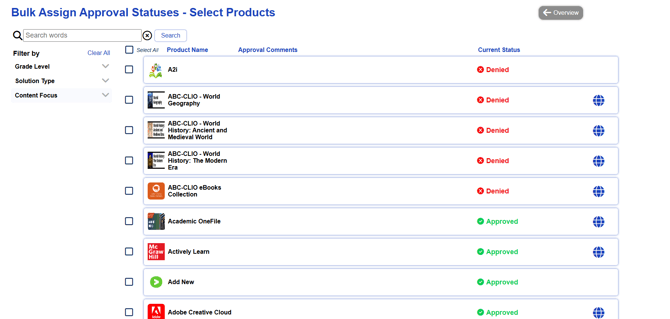
- Click on the checkbox beside products to which you'd like to assign a single approval status. Use the search bar or filters, as needed, to locate products.
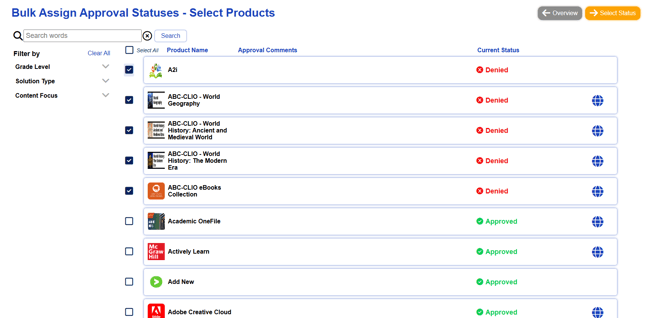
- When you have finished selecting the products, click the orange Select Status button.
- Choose the desired approval status using the drop-down menu. You may also add an optional approval comment.
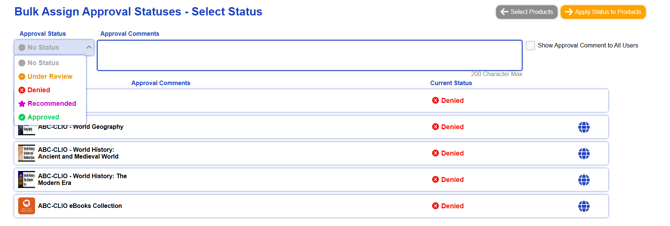
- Click the orange Apply Status to Products button.
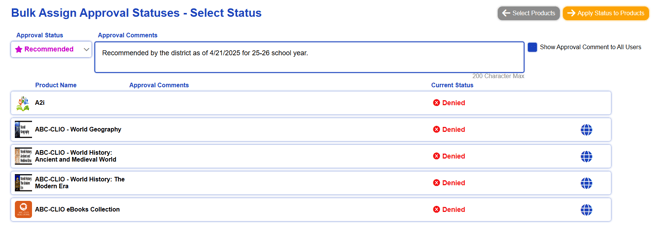
- Review and confirm the action by clicking the green Assign Approval Status button.

- Choose to continue bulk assigning approval statuses or go back to the main page.
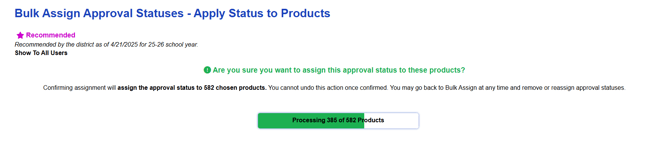
Please note that if you are attempting to assign a status from an extensive number of products, you will see a processing screen. This is an indicator that the assignment is working, but may take a few more moments.