
Prerequisite for SSO User Groups
In order to map groups in the TMS, you must already have the desired group(s) set up and populated within your SSO provider. For example, if you want to create a TMS User Group of school principals using the mapping feature, you must first have a "Principals" group in your SSO (e.g. principals@ccps.org) that contains your school principals as members.
Locating the Mapping Tool
To view and use the mapping tool, you must first be assigned the permission "Manage User Group Mapping."
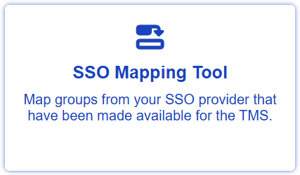
To access the tool, click on the settings wheel in the bottom left of the TMS. Then, click on the SSO Mapping Tool card.
Finding & Mapping Groups
If your district has more than 1,000 groups, you must use the search bar to narrow the number of records before any groups appear on the screen. It is helpful to know the exact name(s) of the group(s) you want to map ahead of performing this search.
-
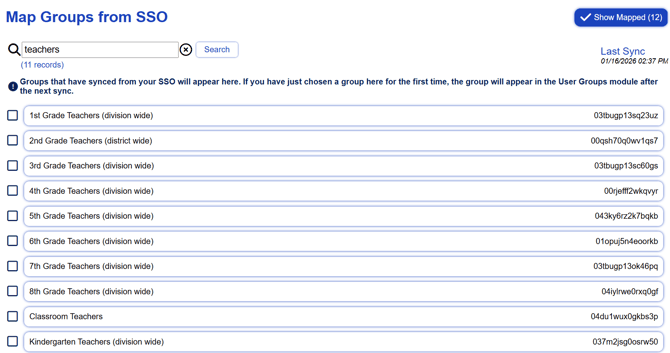
If needed, enter a search term (e.g. "teacher" or "admin") to help reduce the number of records and better locate your desired group(s).
- Check the box to the left of the desired group(s).
If you nest groups in your SSO, choosing the parent group will not bring in the nested groups and their members. You must, instead, choose each nested (child) group.
There is no save button or confirmation. Once the box is checked, this group and its users will officially be synced into the TMS overnight.
Group Identifiers
When choosing groups to map, you will see the group identifier in the right of each row. This identifier can also be found in your SSO provider's system in the group's URL. This identifier is helpful in the event that you have two groups with the same name or need to troubleshoot.
Viewing Already-Mapped Groups
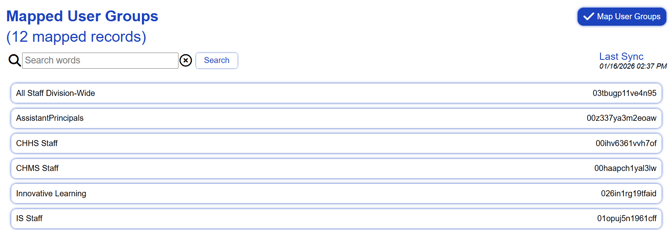
To see which groups are already mapped in your TMS, click on the Show Mapped button in the top right corner. This list shows the groups already mapped.
To return back to the mapping area, click the Map User Groups button in the top right corner.
Unmapping a Group
To unmap a group, you will locate the group via the search bar and uncheck the box to the left of the group.
IMPORTANT: If you unmap a group, and a TMS user only belongs to that group, that user will be removed from the TMS and be unable to access the system. They must belong to other groups to stay in the TMS.
If you accidentally remove a user this way, please reference this article for support on adding them back in.
Syncing Cadence
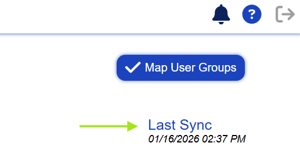
The Veracity TMS performs a nightly sync for its groups and their members. You can view the last sync for your instance at the top right of the mapping tool screens. Please note that the time zone for the time listed is Universal Time (UTC).
If you have mapped a group for the first time, its users will sync into the TMS after the nightly sync. The users should show in User Management the next day.
Viewing the Users in an SSO Group
If you aren't sure which users have come over with a mapped group, you can locate that synced group in the User Groups area of the TMS and click the Users tab to see who is in the group.
To learn more about the User Groups admin area of the TMS, view this article.